# Logging in to OpenShift
!!! note
To access OpenShift, you must connect to the TUnet or use the TU VPN.
OpenShift has a graphical user interface to manage your resources. Here's how you can log in.
## Step 1: Datalab portal
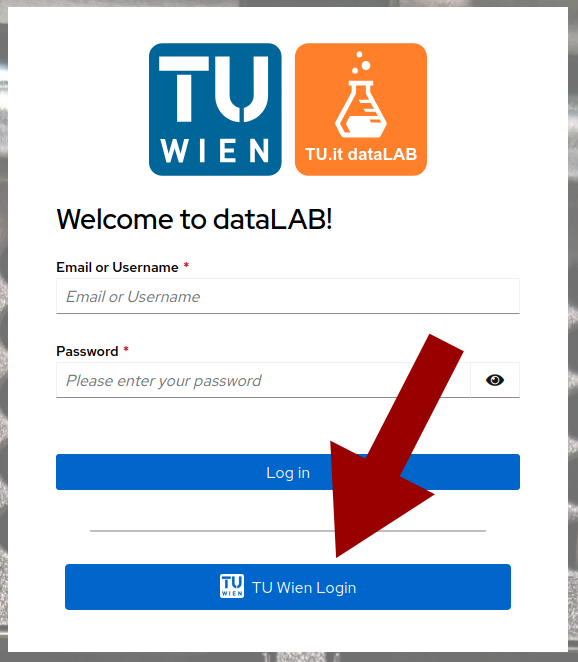
Log in to the Datalab portal at [login.datalab.tuwien.ac.at](https://login.datalab.tuwien.ac.at){ .md-button } with your
TU Wien credentials by clicking the appropriate button.
!!! note
Do not enter your TU Wien username/password directly into the form as this will only work for Datalab-specific users.
## Step 2: Select OpenShift
Once you are logged in, select the OpenShift logo. This is the red circle at the bottom of the page, not the red square.
The square would be [OpenStack](https://datalab.tuwien.ac.at/de/infrastructure/openstack/), which is a completely different thing.

## Step 3: Log in with openid
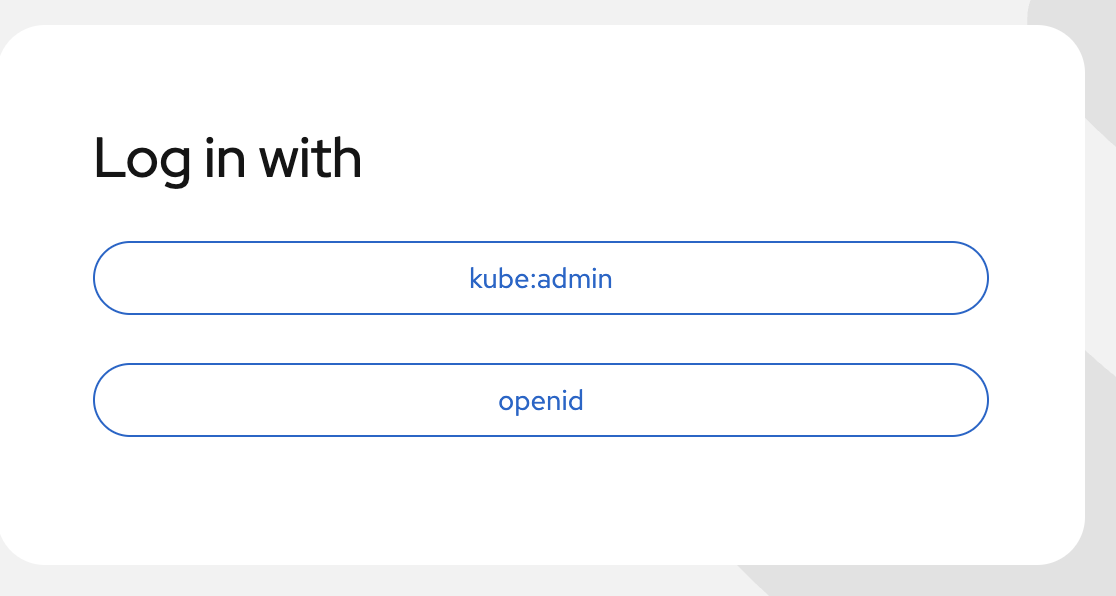
On the next screen, select the `openid` option.
Now follow the login flow until you land at the OpenShift console. If you see that you don't have access to any
namespaces, click the following button to get access.
[Getting access](https://datalab.tuwien.ac.at/de/infrastructure/openshift/creating-a-project/){ .md-button }