# Logging in to OpenStack
## Step 1: Datalab portal
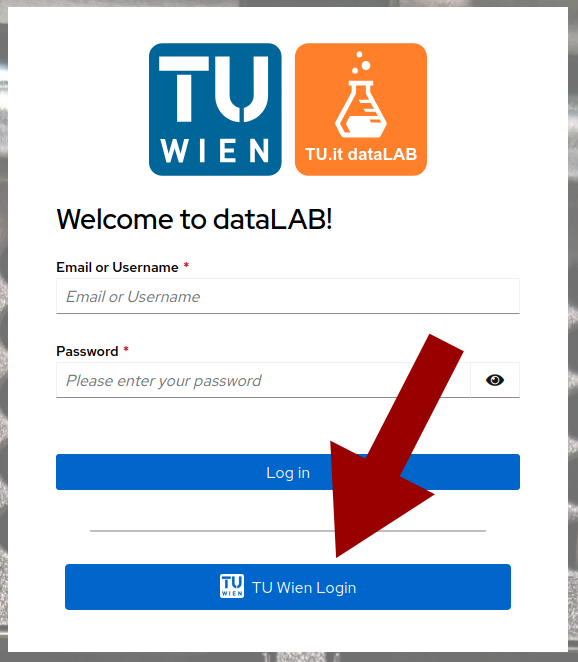
Log in to the Datalab portal at [login.datalab.tuwien.ac.at](https://login.datalab.tuwien.ac.at){ .md-button } with your
TU Wien credentials by clicking the appropriate button.
!!! note
Do not enter your TU Wien username/password directly into the form as this will only work for Datalab-specific users.
## Step 2: Select OpenStack
Once you are logged in, select the OpenStack logo. This is the red square at the bottom of the page, not the red circle.
The circle would be [OpenShift](https://datalab.tuwien.ac.at/infrastructure/openshift/), which is a completely different thing.

## Step 3: Log in with your TU Wien credentials
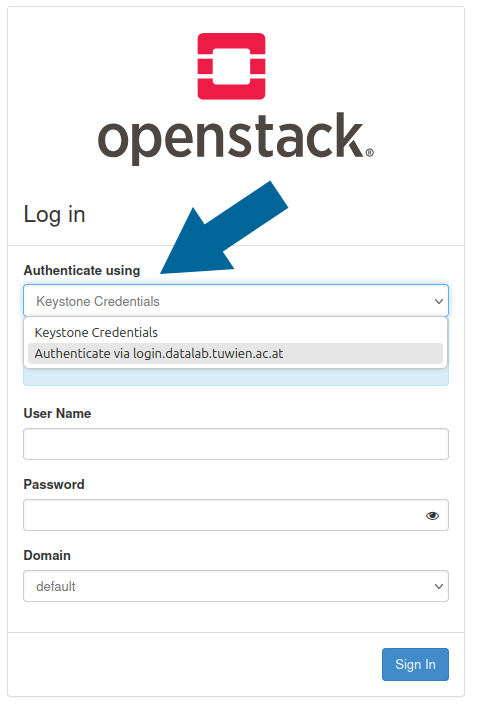
On the next window, select the option "Authenticate via login.datalab.tuwien.ac.at" and follow the login flow. Again,
do not enter your TU Wien credentials directly into the form.
You are now logged in and can proceed to [create a project](https://datalab.tuwien.ac.at/infrastructure/openstack/creating-a-project/).