Pulling images from Harbor
If you want to pull images from the Datalab Harbor instance, you need to set up pull credentials. That is, if your image is not public.
Step 1: Setting up a robot account on Harbor
To do this, go to Harbor and select your project. Then click Robot Accounts
on top and create a new robot account. This robot account should have the following settings:
- Expiration time:
Never - Permissions:
- List Repository
- Pull Repository
- Read Artifact
- List Artifact
- List Tag
It should look something like this:
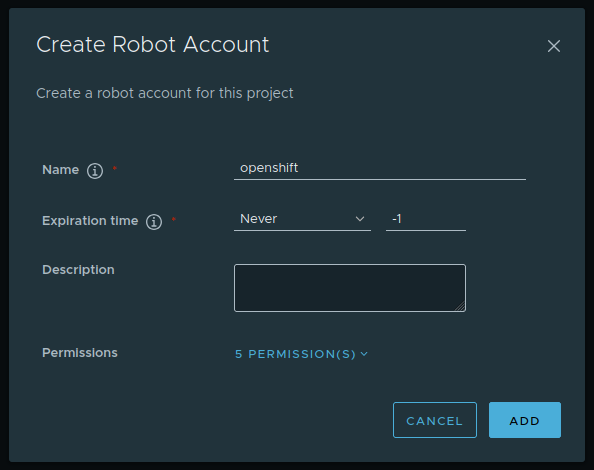
Click Add and then copy the name and secret to a secure place. You will need it in the next step.
Note
Depending on your security requirements, you may want to rotate your keys frequently.
Step 2: Setting up the pull secret in OpenShift
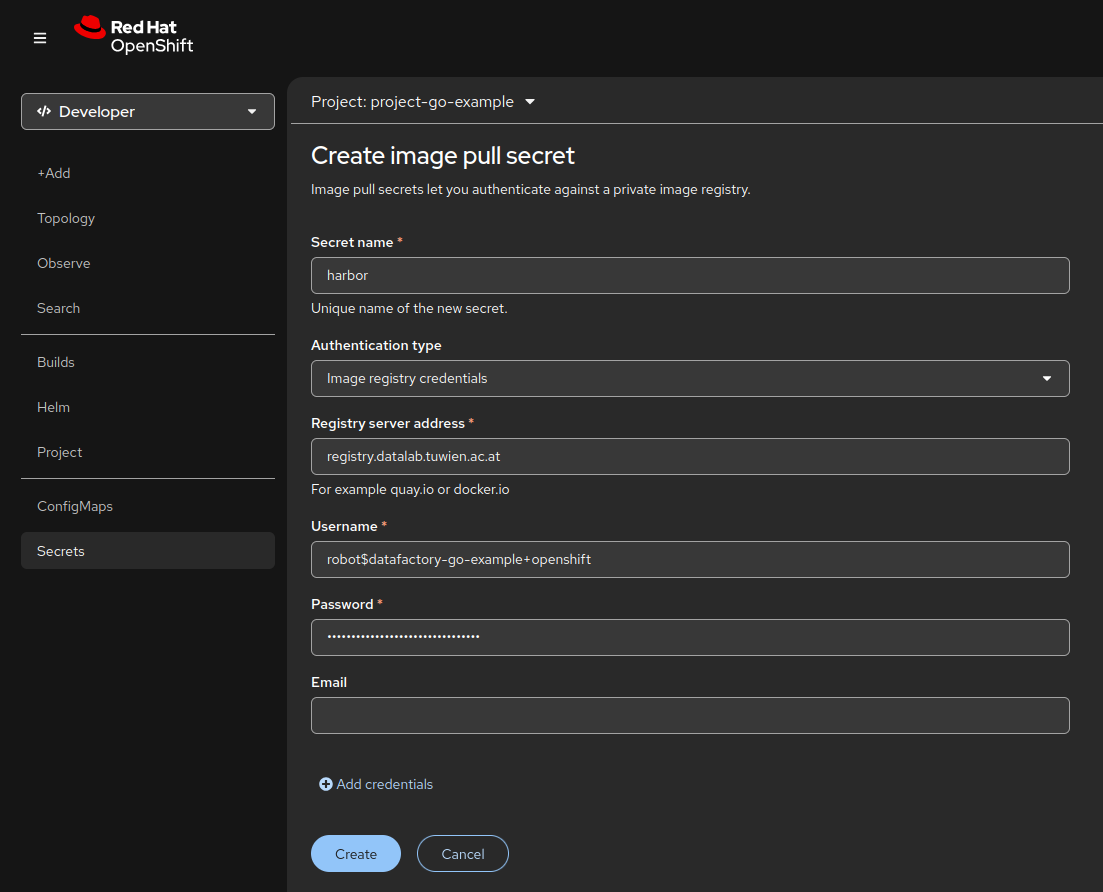
Now you will need to create a pull secret within OpenShift. The easiest way to do this is to select Secrets on the
left side and then click Create → Image pull secret in the top right corner.
You can now fill out the form with your Harbor credentials:
- Name:
harbor - Registry server address:
registry.datalab.tuwien.ac.at - Username: the username from the previous step
- Password: the passsword from the previous step
It should look something like this:
Step 3: Linking the secret to the default service account
Now that you have your secret, you will need to link it to the default service account. You will need to use the command line tool to run the following command:
oc secrets link default harbor --for=pull
You can verify that the secret is correctly linked by running the following command:
oc get serviceaccount default -o yaml
You should see the following:
imagePullSecrets:
- ...
- name: harbor
Now your service account is set up to pull from your private registry.
Tip
Looking for more elaborate examples? Our example repositories have fully working applications!